 Pamatovák
User guide
The essentials in one place – the shared calendar, iCloud, Google and repeating reminders. Everything shown on the phone, iPhone and Android.
A family calendar in the cloud
Pamatovák keeps the calendar on a secure server, and everyone who knows its code sees and edits the same. No sign-up, e-mails or passwords.
How to
- 1
Create a calendar
In Menu › Calendars & sharing choose New calendar, name it and pick a colour. It takes over everything already on the phone.
- 2
Send the code to your family
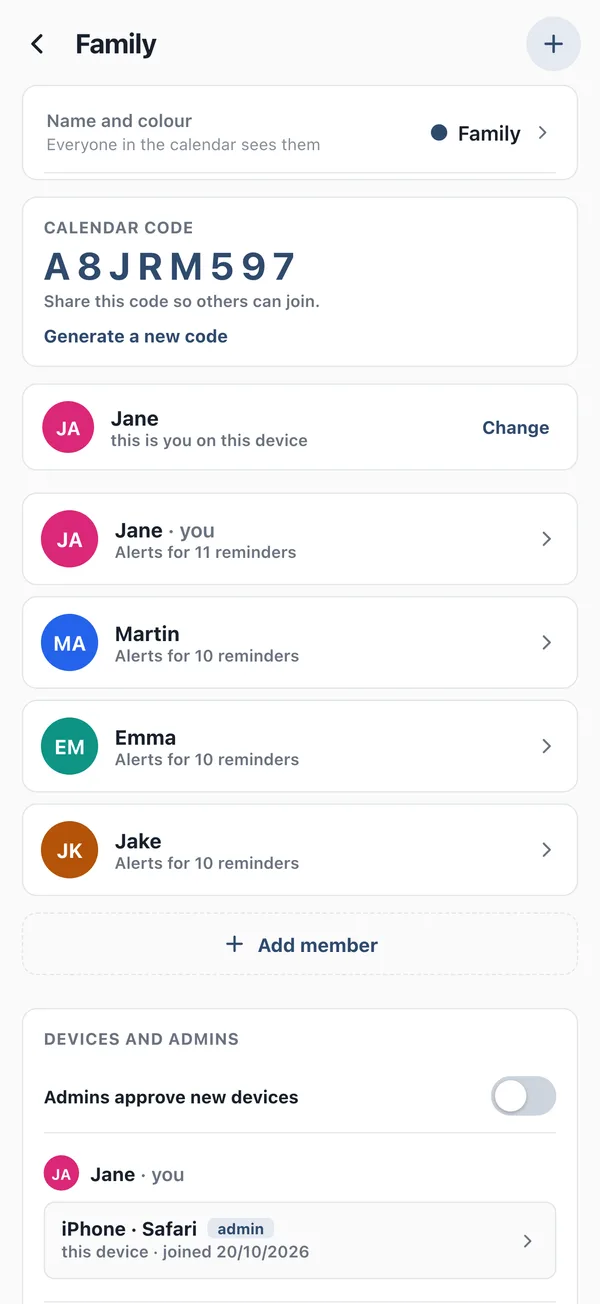
The calendar’s detail shows its calendar code (8 characters). Send it to anyone in the family.
- 3
Your family joins
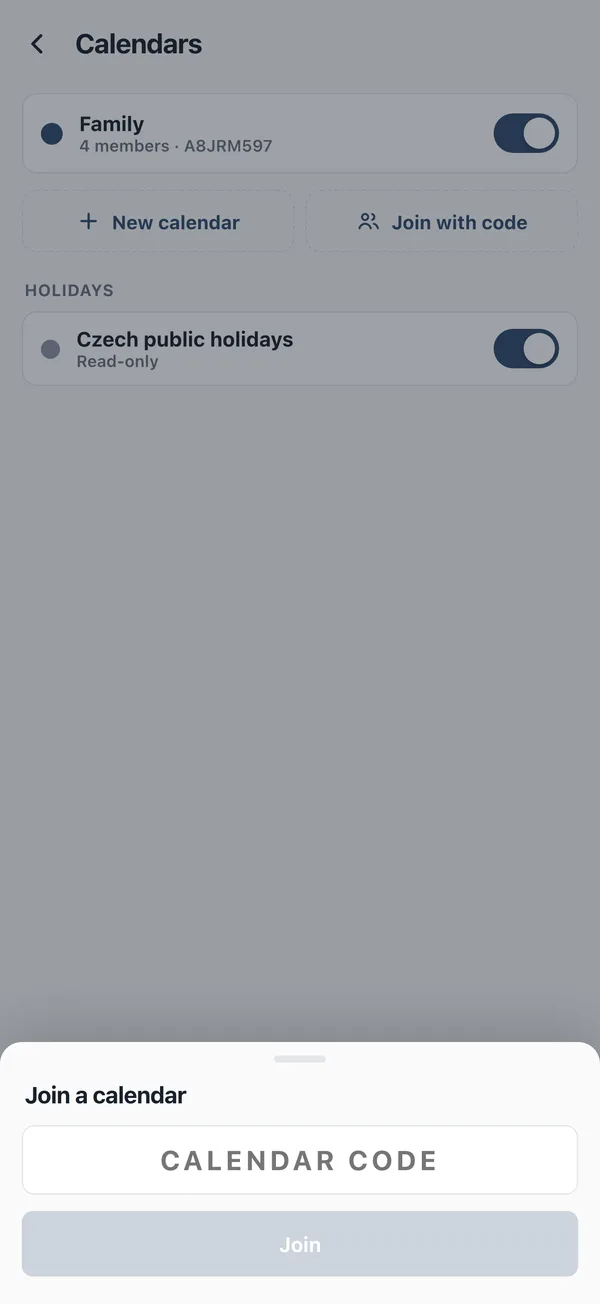
The others choose Join with code in Menu › Calendars & sharing, enter the code and pick who they are – or join as a new member.
Good to know
- Whatever anyone adds or finishes shows up for the others within seconds. Without internet Pamatovák keeps working and sends the changes once it’s back online.
- Want to know who joins? Turn on Admin approves new devices in the calendar’s detail.
- Whoever creates the calendar gets an admin recovery code. Keep it – it’s shown only once.
- You can have several calendars (Family, Work…). They show on top of each other, each in its colour.
An iCloud calendar for the whole family
Have a family calendar in iCloud? Pamatovák shows it to everyone in the calendar – Android users too. A calendar admin sets up the link.
How to
- 1
Create an app-specific password
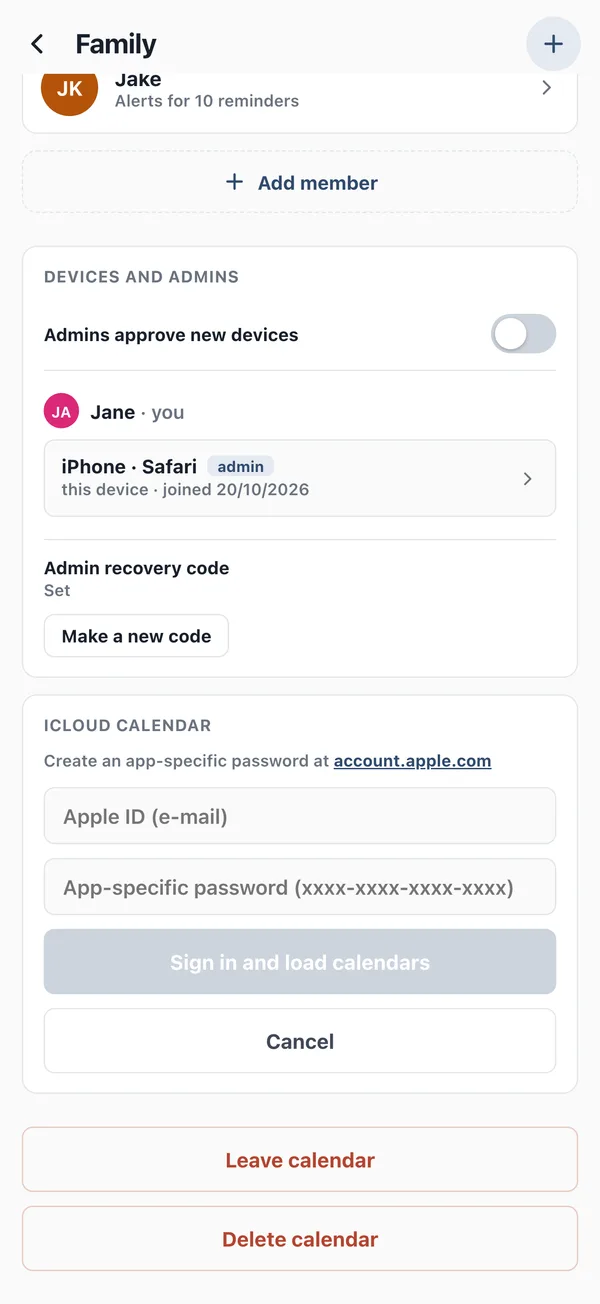
Sign in at account.apple.com and under Sign-In and Security create an app-specific password (it looks like xxxx-xxxx-xxxx-xxxx).
- 2
Link the calendar
In Pamatovák open Menu › Calendars & sharing, tap your calendar and in the iCloud calendar card choose Connect iCloud. Enter your Apple ID and the app-specific password.
- 3
Pick the calendar
Choose the iCloud calendar (reminders can come along too) and save. All members see its events right away.
Good to know
- iCloud events start read-only. Once an admin turns on Edit iCloud from Pamatovák, they can be edited here too and the changes show on the iPhone.
- The password is stored encrypted on the server and never shown. You can revoke it any time at account.apple.com.
Just for you on iPhone
The Pamatovák iPhone app also shows the phone’s own calendars and reminders: Menu › Calendars & sharing › On this iPhone. They stay on the phone – other members don’t see them.
Google Calendar
The Pamatovák app for iPhone and iPad shows your Google Calendar – all it takes is your Google account added on the iPhone.
How to
- 1
Add Google to your iPhone
Open the iPhone’s Settings and add your Google account:
Settings›Apps›Calendar›Calendar Accounts›Add Account›Google - 2
Turn it on in Pamatovák
Let Pamatovák access your calendars (Menu › Settings › Permissions) and turn on the Google calendars in Menu › Calendars & sharing › On this iPhone.
- 3
Share it with your family
In Google Calendar (calendar.google.com) open the calendar’s settings and choose Share with specific people. Everyone then adds their Google account to their iPhone.
Good to know
- Google events can be edited, moved and added in Pamatovák – the change goes straight to Google Calendar.
- Tap a calendar’s row to give it another colour in Pamatovák; Google keeps its own.
Repeating reminders and steps
What comes round regularly you enter once. Split a bigger task into steps, and Pamatovák keeps reminding you until it’s done.
How to
- 1
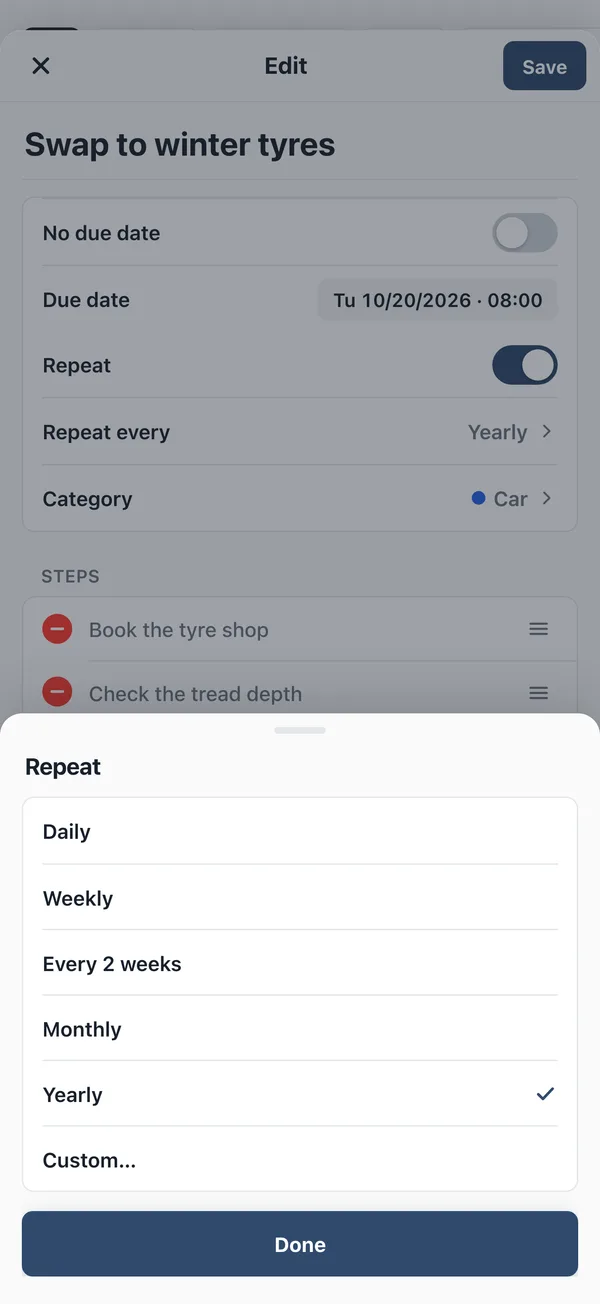
Set the repeat
Turn on Repeat and choose how often: daily, weekly, monthly, yearly – or Custom… (every 2 years, the second Tuesday of the month, until a date).
- 2
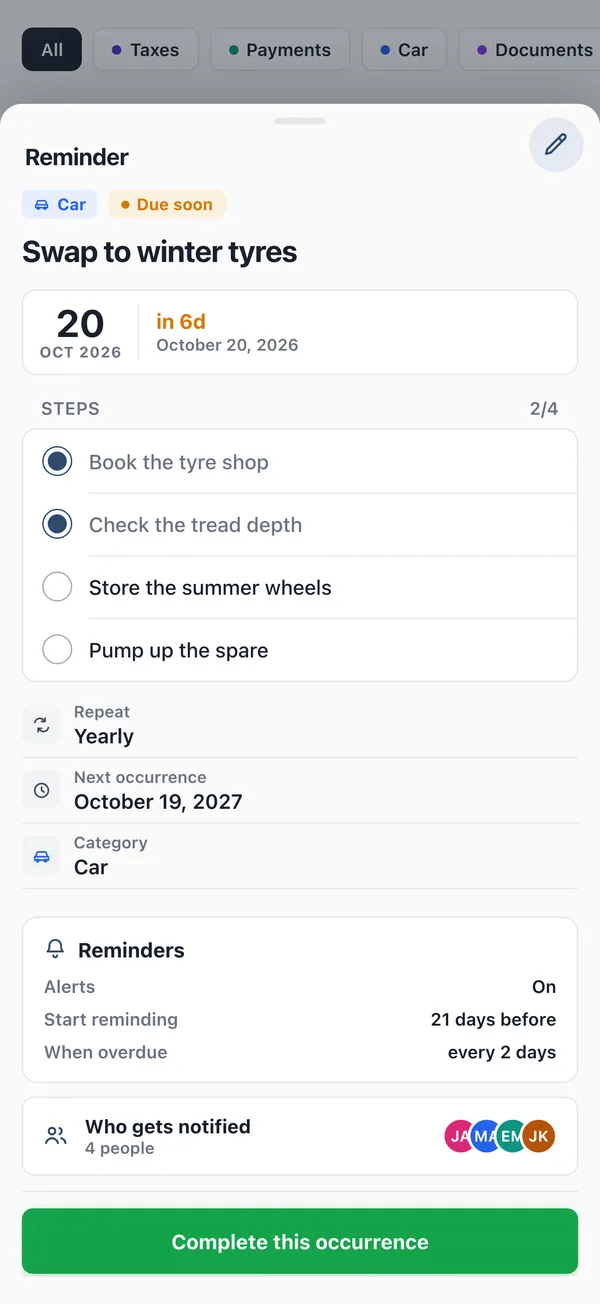
Add steps
Under Steps write what needs doing (“book an appointment”, “check the tread”). Tick them off one by one in the reminder’s detail.
- 3
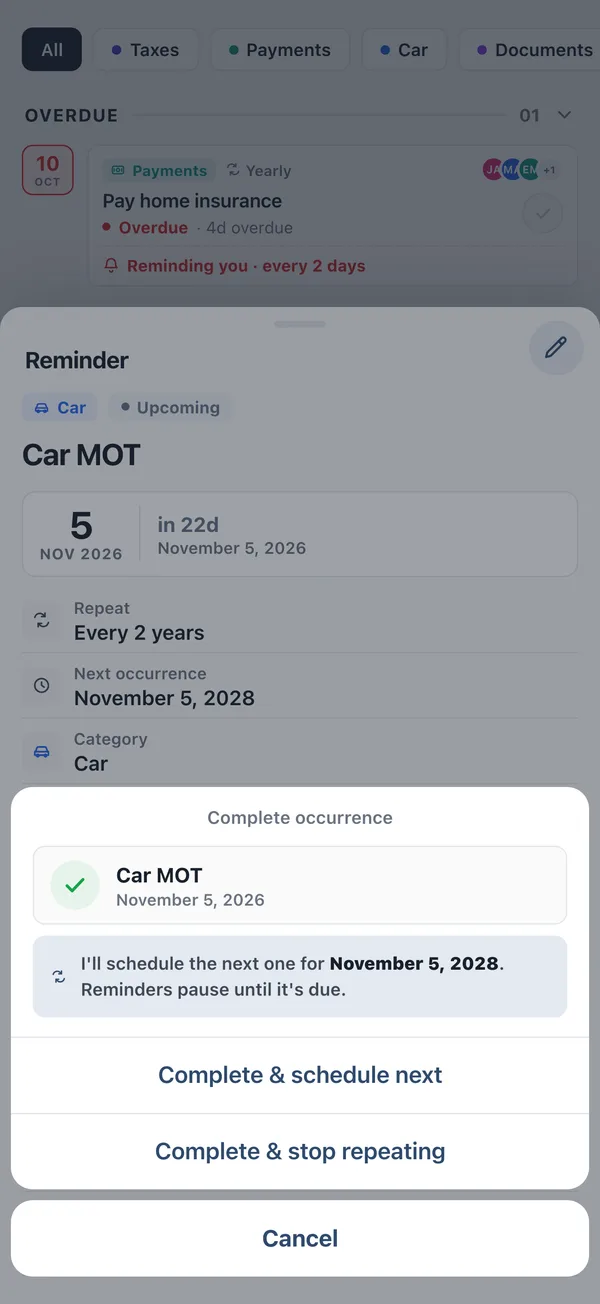
Complete and carry on
After the last step choose Complete & schedule next. The reminder moves on to the next date and the steps start over.
Good to know
- Start reminding sets how many days ahead Pamatovák speaks up. When overdue, repeat – how often it nudges until you complete it.
- No more repeats? Choose Complete & stop repeating. Completed occurrences are in the detail’s history.
- Faster with AI: type “car check every two years, next in March” and Pamatovák sets the date, the repeat and the steps.
FAQ
Do I need an account or e-mail?
No. A calendar is shared with a code – no sign-up or password.
Why don’t I get notifications?
Check Menu › Settings › Permissions. Allow asks for notifications again; if they’re off on the phone, it opens the phone’s settings. You can send a test notification there too.
I lost my phone. What now?
A calendar admin removes it in the calendar’s detail under Devices & admin. A removed device loses access.
Where do I find the calendar code?
In Menu › Calendars & sharing, tap the calendar – on any device that has joined.
Do others see my iPhone’s calendars?
No. The iPhone’s calendars and reminders stay on the phone. Only Pamatovák calendars are shared.
How do I leave or delete a calendar?
At the bottom of the calendar’s detail: Leave calendar disconnects just this phone, Delete calendar (admins only) deletes it for everyone.
Where is my data?
On a secure server – only those who know the calendar code can get to it. No ads, no tracking.
Didn’t find your answer?
Write to info@pamatovak.cz – we’re happy to help.